

Windows PC
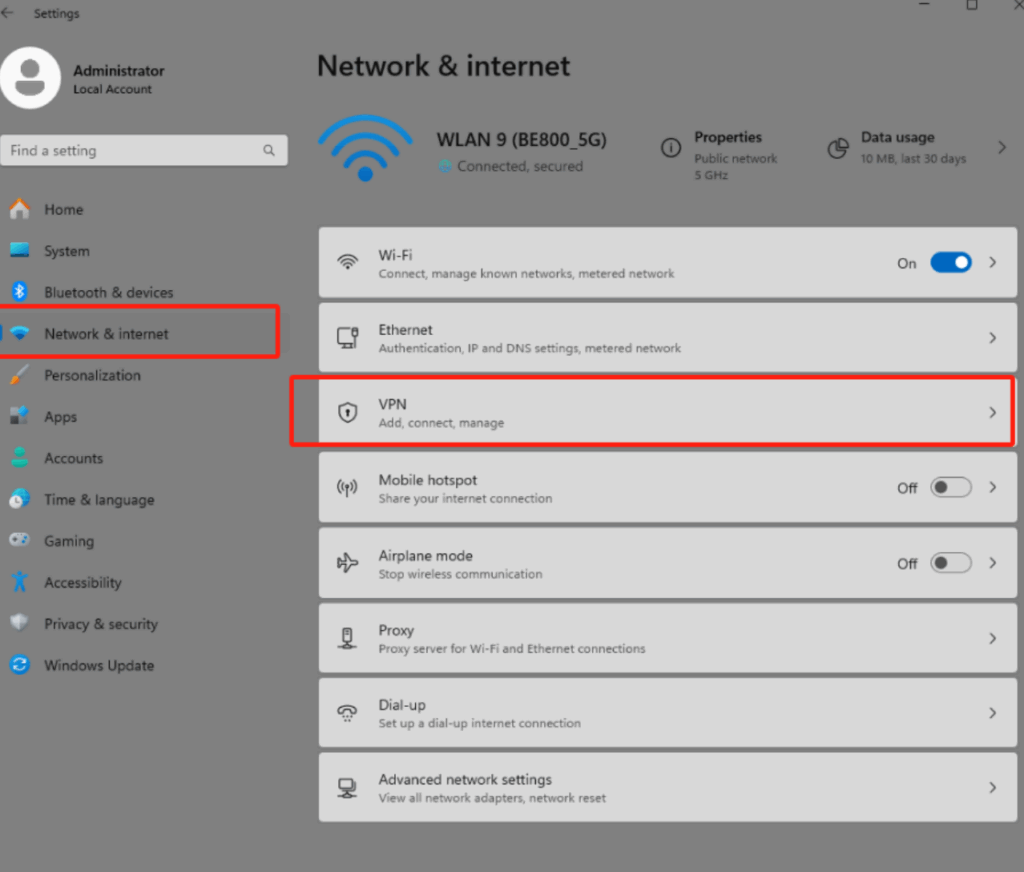
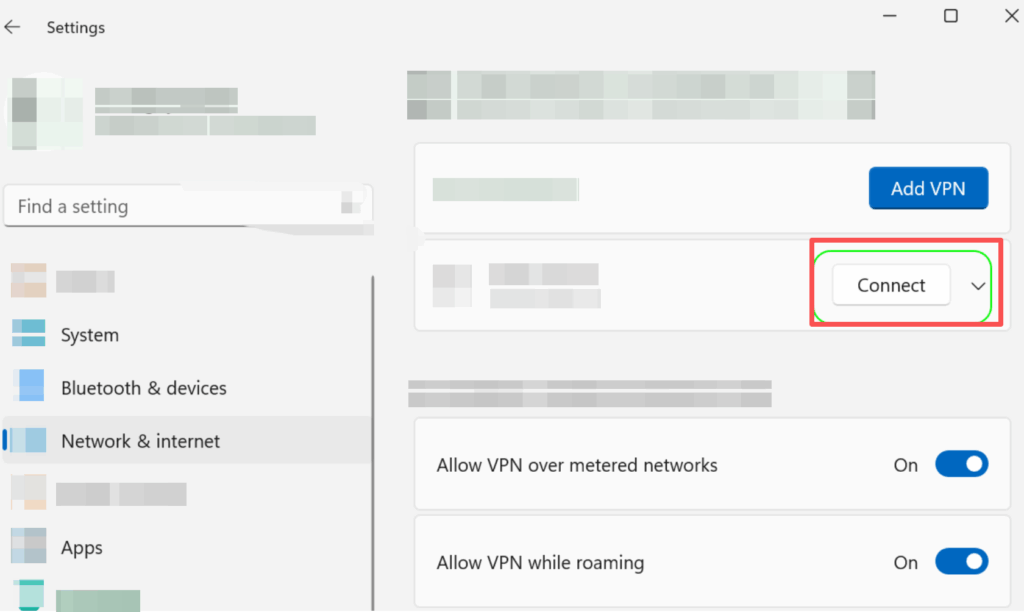
1. Go to Settings > Network & Internet, then select VPN.
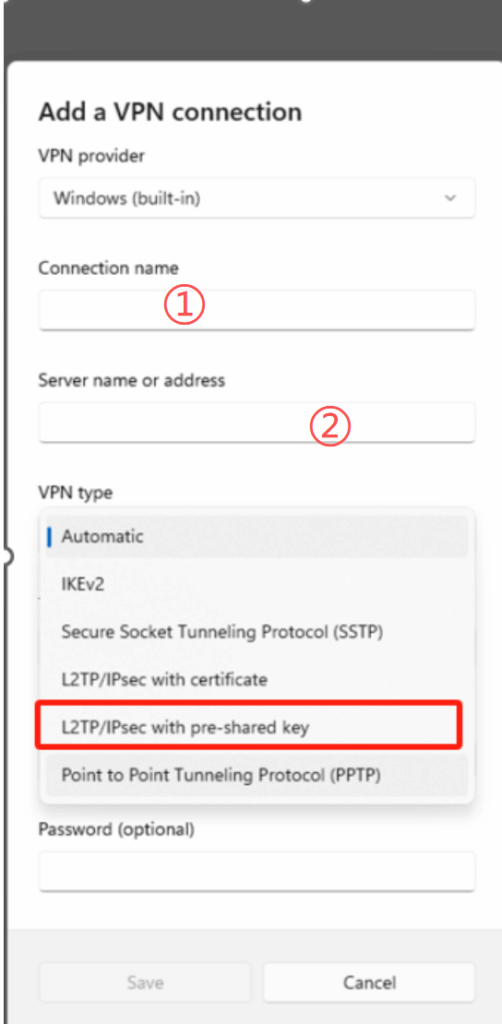
2. Click on Add a VPN connection, choose the VPN provider as Windows (built-in), enter the name of your VPN in the Connection name field, fill in the Server name or address with the server domain name or public IP address, select L2TP/IPsec with pre-shared key as the VPN type.
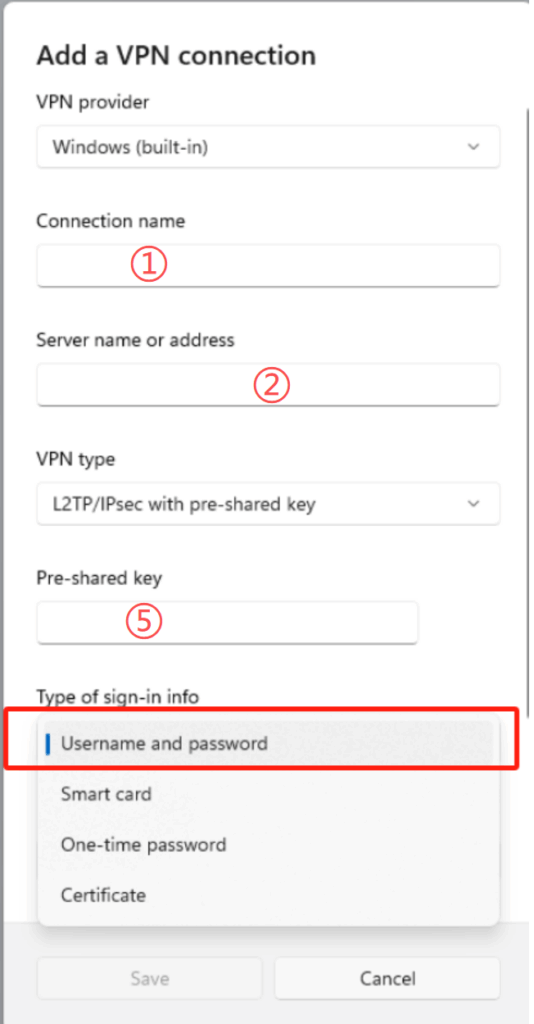
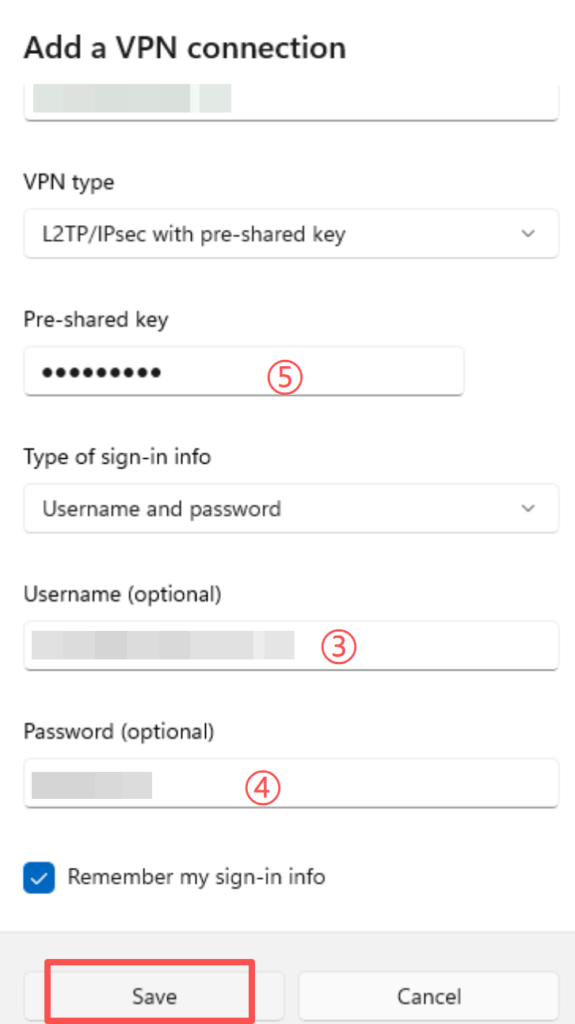
3. Choose Username and password for the sign-in info, and enter your username and password, then click Save
4. Find the configured VPN in the list, click “Connect,”
5. If your L2TP/IPsec connection shows Connected, and data being sent and received during your VPN connection, it typically indicates that the VPN connection has been successfully established.