These instructions explain how to connect to a VPN Gate Public VPN Relay Server using the L2TP/IPsec VPN client built into Mac OS X.
All screenshots in these instructions were taken on Mac OS X Mountain Lion. The setup process is similar in other versions of Mac OS X, though the interface may differ slightly.
The screenshots show the English version of Mac OS X. If you use another language, you can follow the same steps using the corresponding menu items.
1. Initial setup (required only once)
Click the network icon on the top-right side on the Mac screen. Click “Open Network Preferences…” in the menu.

Click the “+” button on the network configuration screen.

Select “VPN” as “Interface” , “L2TP over IPsec” as “VPN Type” and click the “Create” button.

A new L2TP VPN configuration will be created, and the configuration screen will appear.
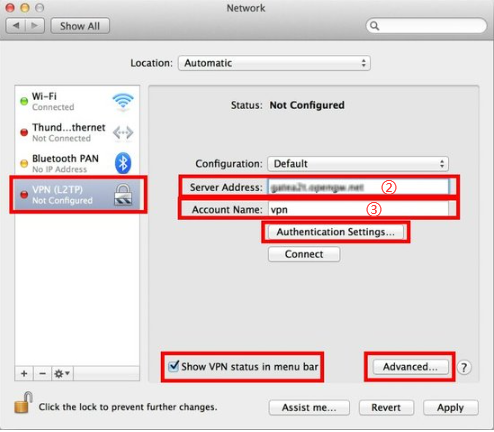
On this screen, you have to specify either hostname or IP address ② of the destination VPN Server.
After you have specified the “Server Address” , input the ③ on the “Account Name” field.
Next, click the “Authentication Settings…” button.
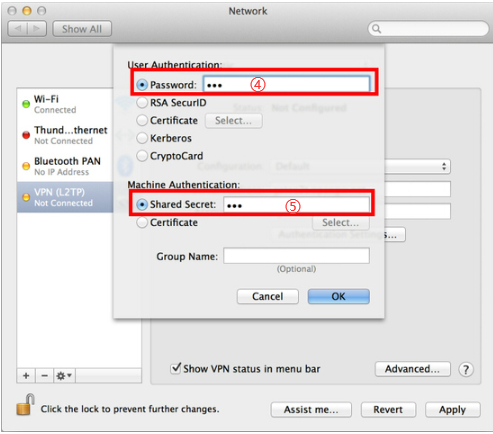
The authentication screen will appear. Input ④ in the “Password” field. Specify the ⑤ also on the “Shared Secret” field. After you input them, click the “OK” button.
After returning to the previous screen, check the “Show VPN status in menu bar” and click the “Advanced…” button.

The advanced settings will appear. Check the “Send all traffic over VPN connection” and click the “OK” button.
On the VPN connection settings screen, click the “Connect” button to start the VPN connection.
2. Start a VPN connection
You can start a new VPN connection by clicking the “Connect” button at any time. You can also initiate a VPN connection by clicking the VPN icon on the menu bar.
Once the VPN connection is established, the settings screen will show the “Status” will be “Connected” . Your private IP address on the VPN, and connection duration will be displayed on the screen.

3. Enjoy VPN communication
While the VPN is connected, all communications will be relayed via the VPN Server. You can access local servers and workstations on the destination network.